Tutorial: How
to create animated PowerPoint background slides
| |
| |
|
Start with the
slide background. Remember, we're adding an
animation to the template of the slide not an
animation on the slide itself. When you add an
animation to the background or MASTER slide, it
will play across all slides.
-
Go to the View menu.
Choose Master, and then Slide
Master.
-
If you want a small
animation to play in one corner of
all your slides, go to the Insert menu, choose Movies and Sounds... and
choose either Movie from Clip Organizer or Movie from File (if you have your
own).
-
Place the
animation on the slide where you want it to
be displayed.
-
Click the Shift key + F5 key to preview
your slide. Press the Esc key when
you are done previewing it.
-
If you want the entire
background to be animated, (we don't
suggest doing this for all slides - it will
detract from the presentation itself and
good design), but you could animate the
background of your title slide in PowerPoint
2003. Again, go to the View menu.
Choose Master and then Slide
Master.
-
Now, go
to the Insert menu and choose New
Title Master.
-
You will
need a tiled animated gif - like the
one used in the free download above "Starry
Background". Searching out on the Net you
can find many free animated backgrounds by
looking at various search engines. You can
also find
samples at Brainy Betty by clicking this
page.
-
RIGHT
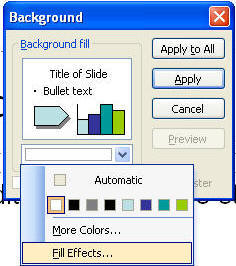
- Click on any blank part of the slide
and choose Background... and use the
Drop down box to choose Fill Effects.
-
Pick the Texture tab and then, the Other
Texture... button at the bottom.
-
Navigate
in your system and go find your tiled
animated gif background.
-
Choose
it.
-
Click the Shift key and F5 key to
preview it and choose Esc to end the
preview.
-
Save your
presentation and go to the View menu
and choose Normal to get back to
adding content to your slides.
|
|
|
|
|
Microsoft ®
PowerPoint, Microsoft ® Word, Microsoft ® Outlook and Microsoft ® Excel are
registered trademarks of Microsoft Corporation in the United States and/or
other countries.
All other trademarks are the property of their respective
owners. All content on this site copyright
©
2013 Eclipse Digital Imaging - Owner, Brainy Betty, Inc. & its licensors. ALL RIGHTS
RESERVED. |